Step 3: Create service category and service vendor
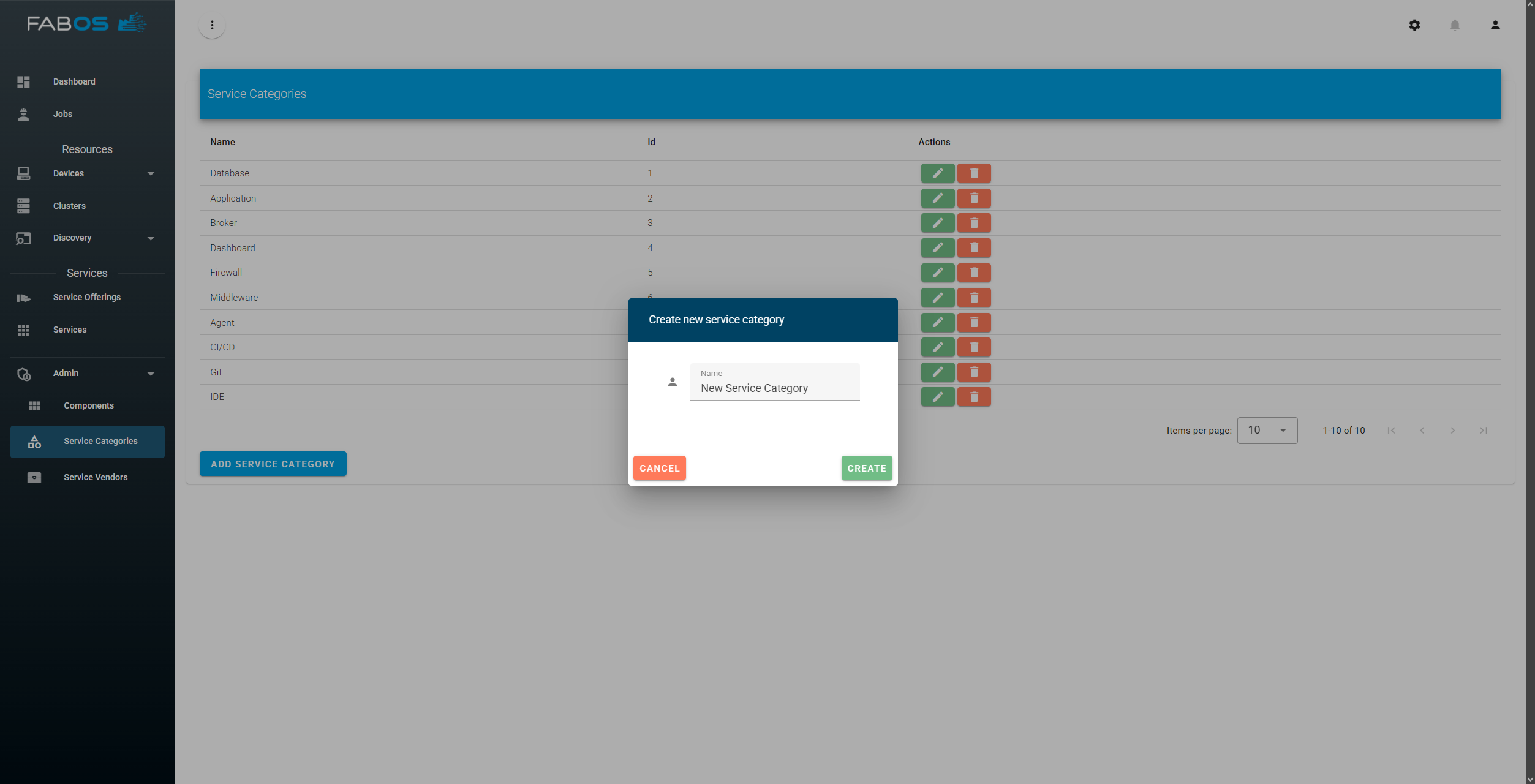
Since your device is now ready for service deployment, we need to create a service offering that can be deployed on your device. Therefore, we need to create a service category and a service vendor in the Admin section. In case you do not see the Admin section at the bottom of the left menu:
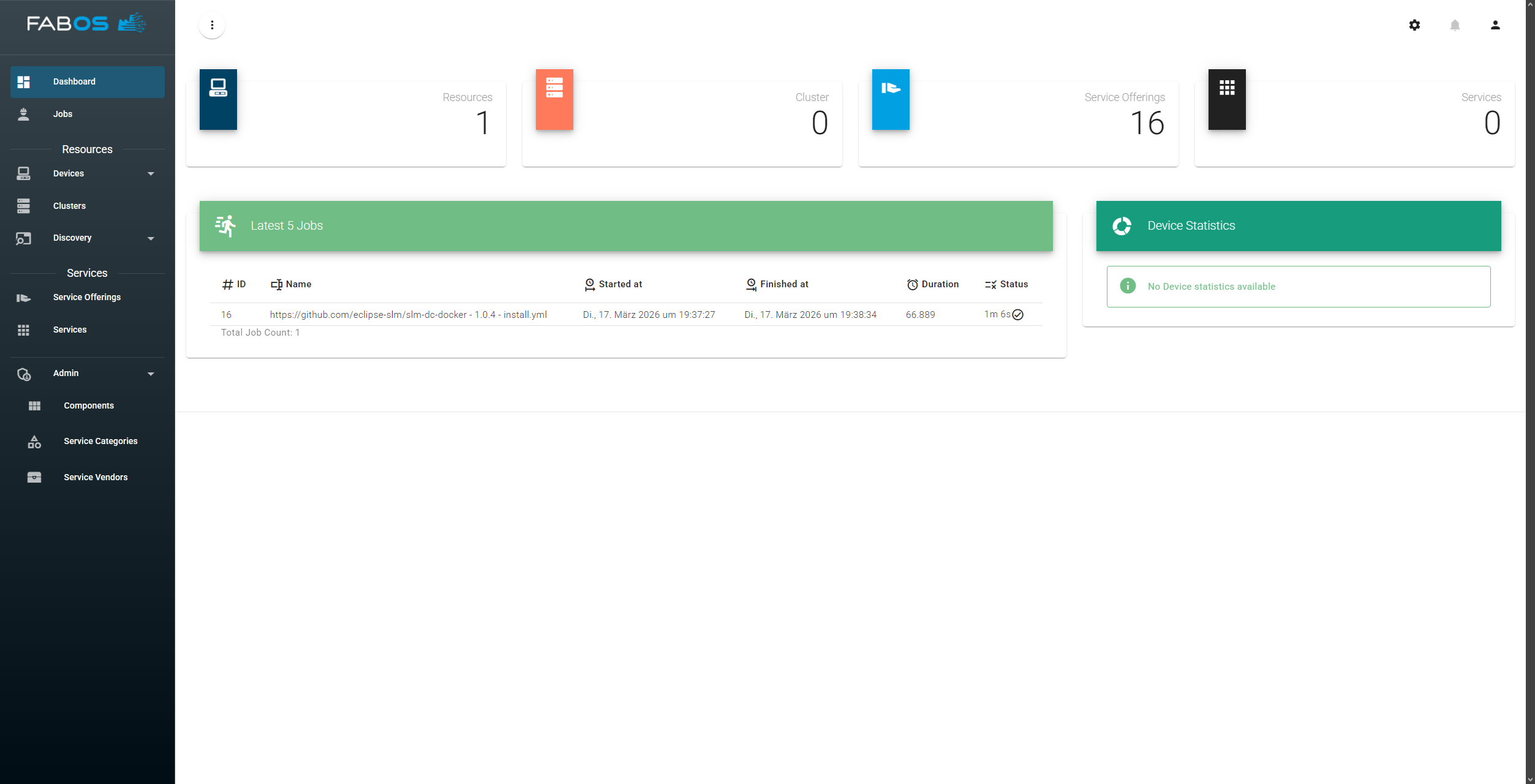
...please follow the instructions in the next section to make the default user an admin first. Otherwise, continue with the instructions in this section.
Make default user a admin
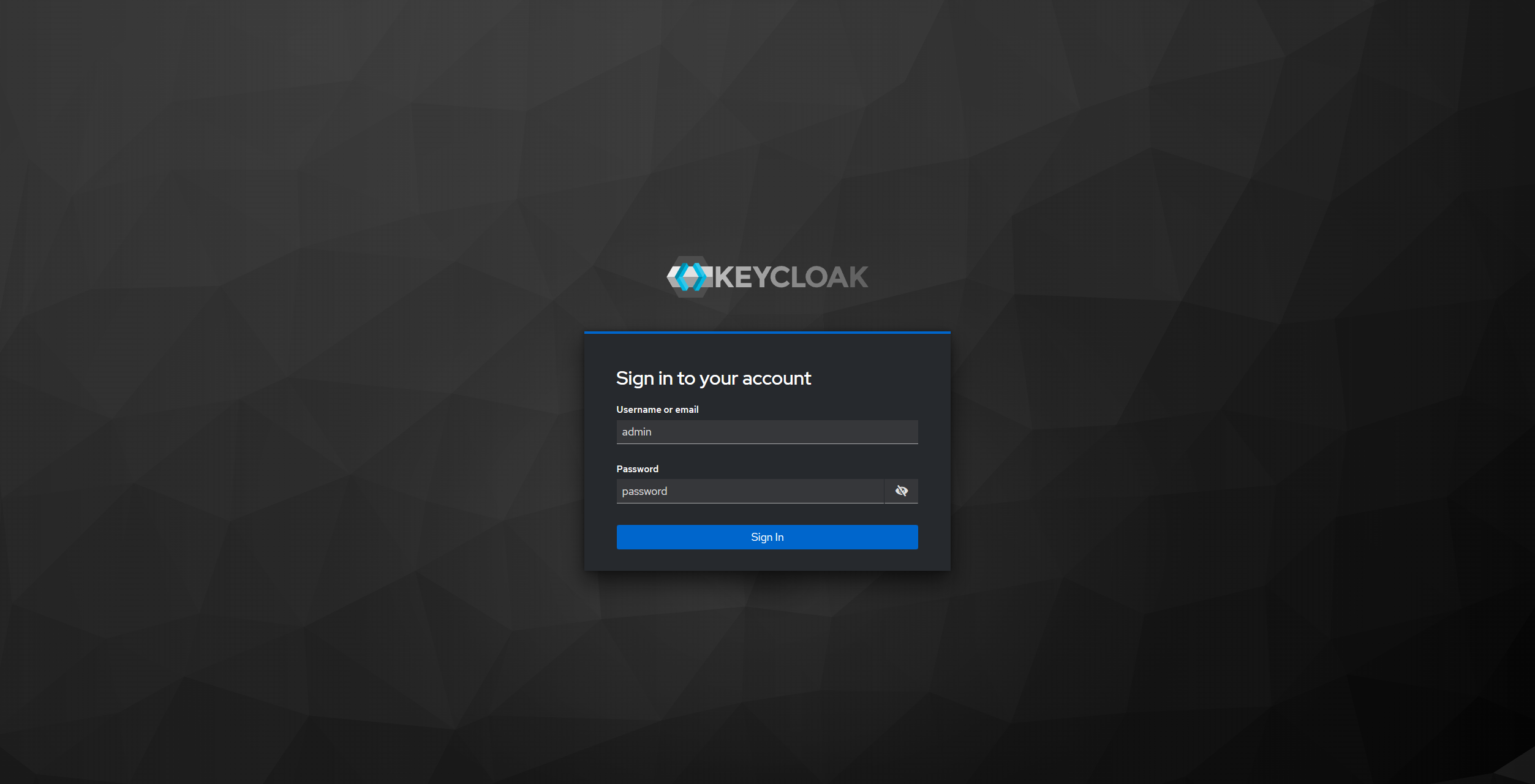
In case you do not see the Admin section at the bottom of the left menu, you need to make the default user fabos an admin first. To do so, you have to log into SLM's keycloak instance (e.g. https://myhost.local/auth) with the default credentials (admin / password):
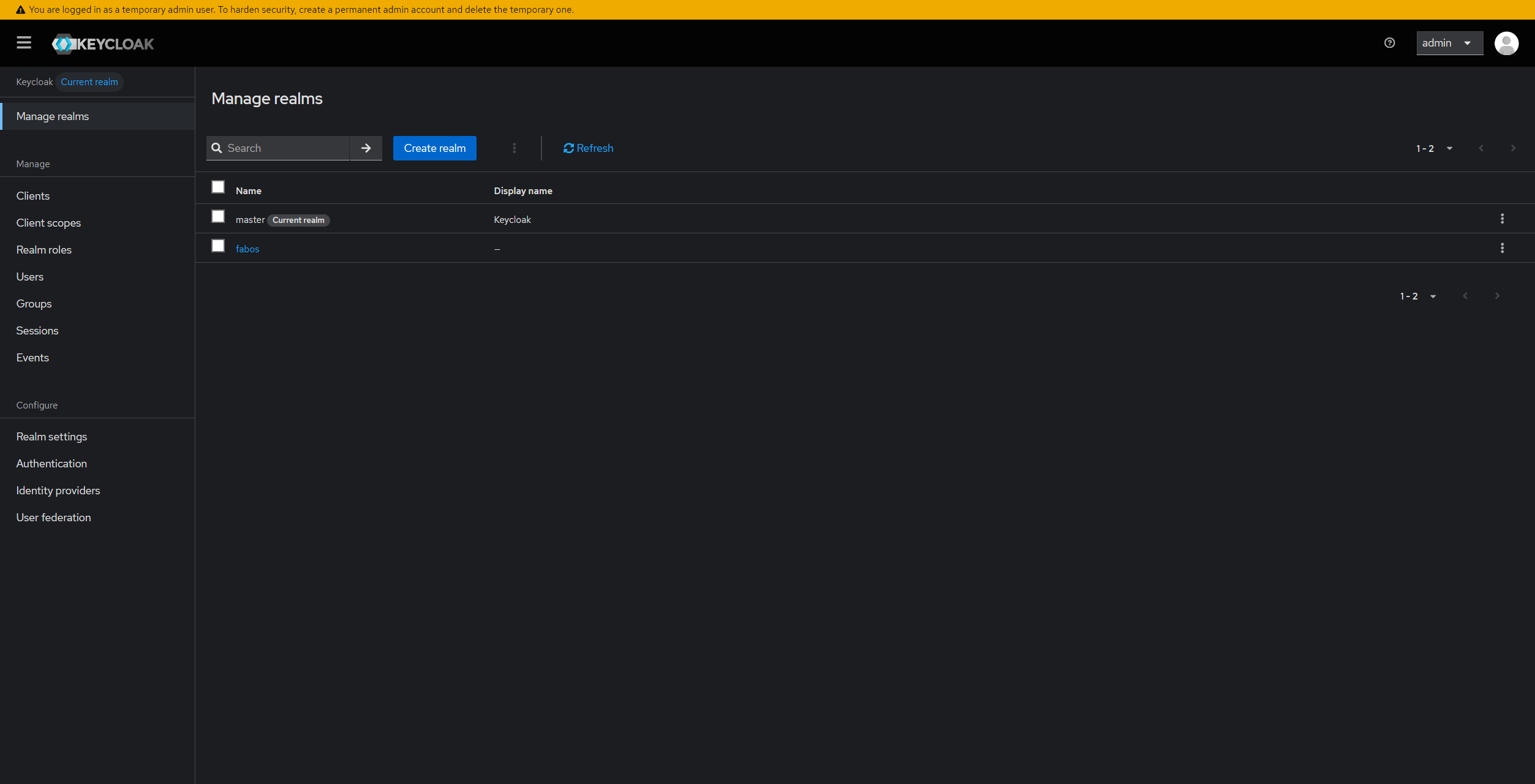
GO TO
Manage realms
...and select the fabos realm:
GO TO
Users
... and select the user fabos:
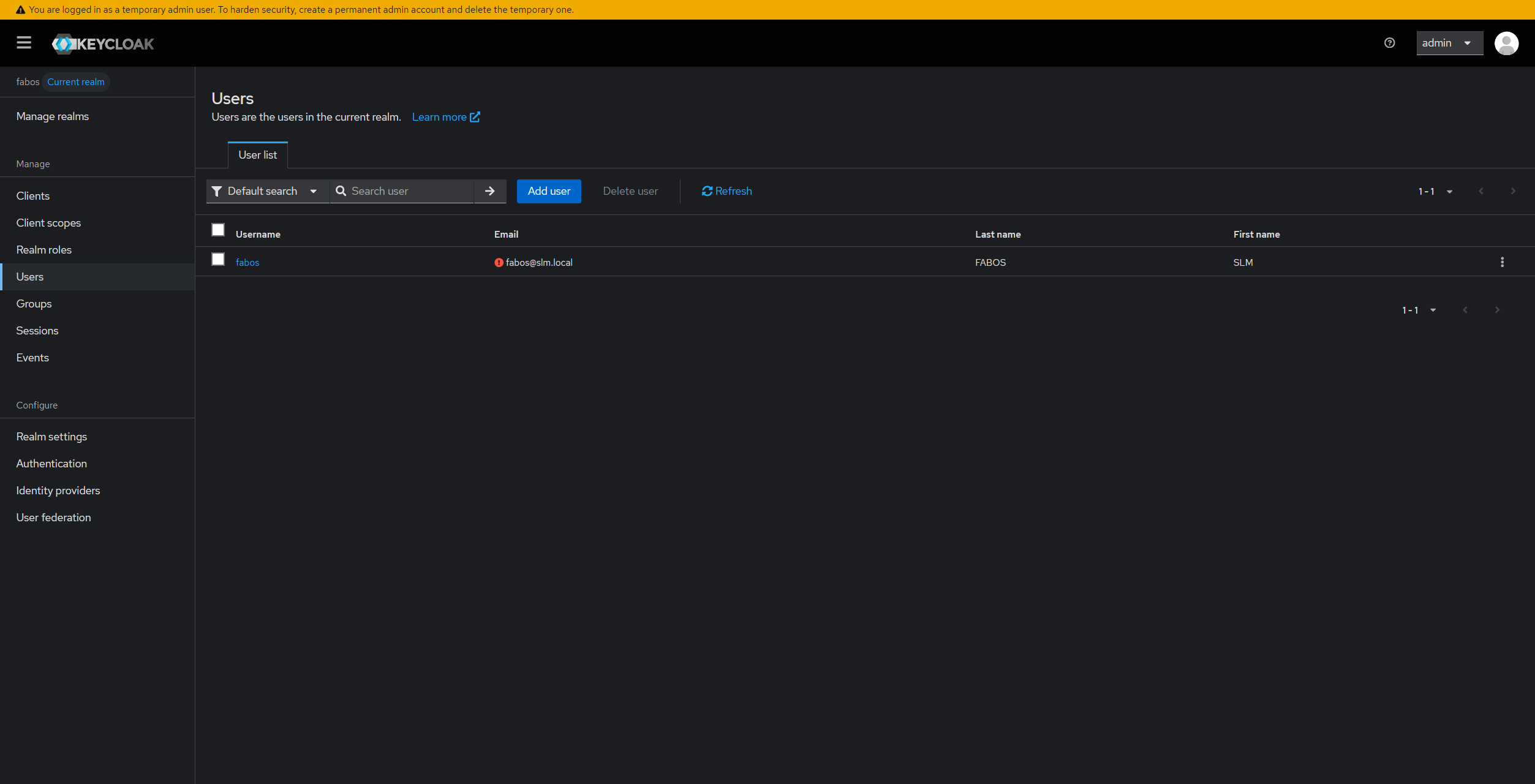
GO TO
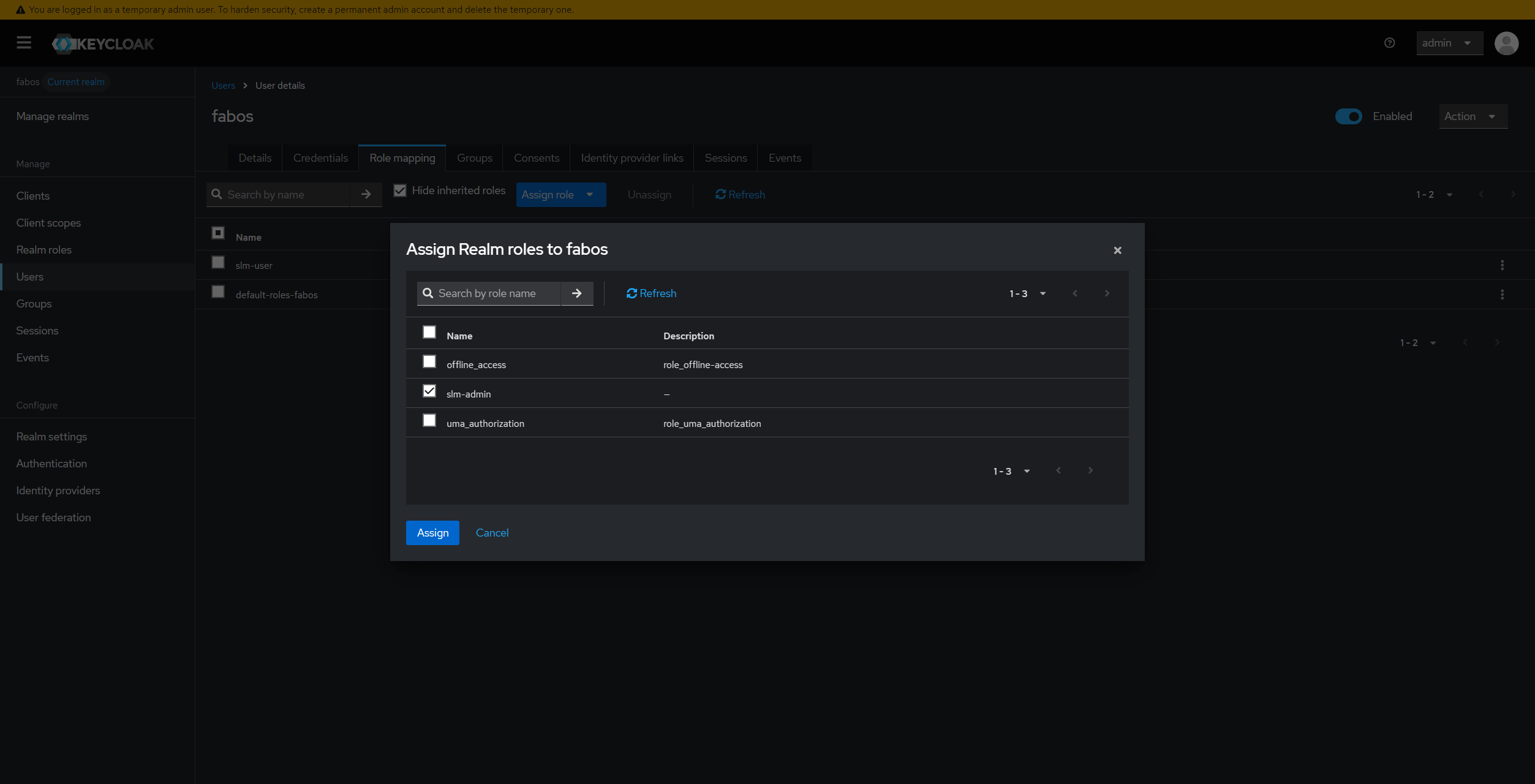
Assign role > realm roles
... select slm-admin and confirm with Assign:
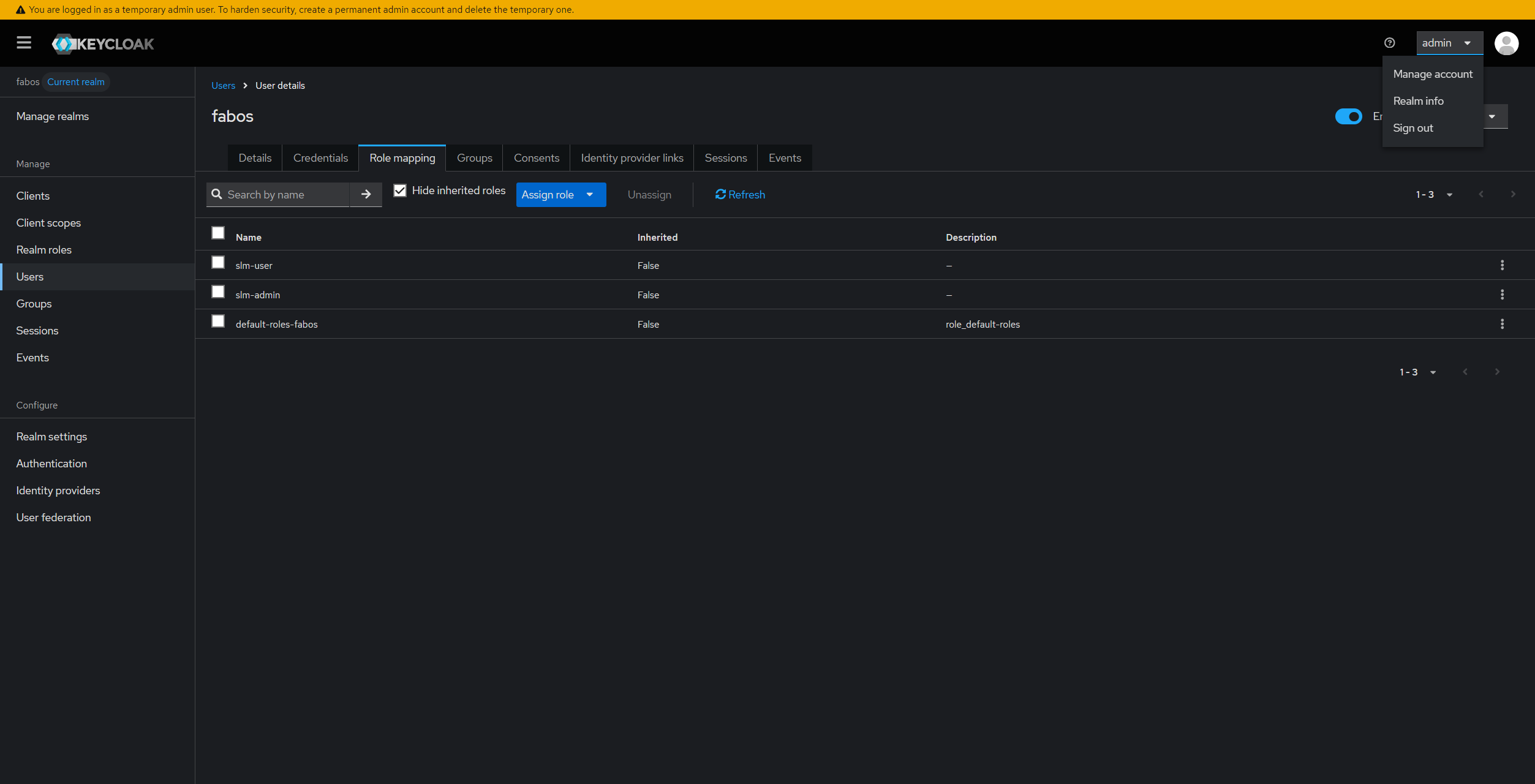
Logout from keyloak:
Create Service Vendor
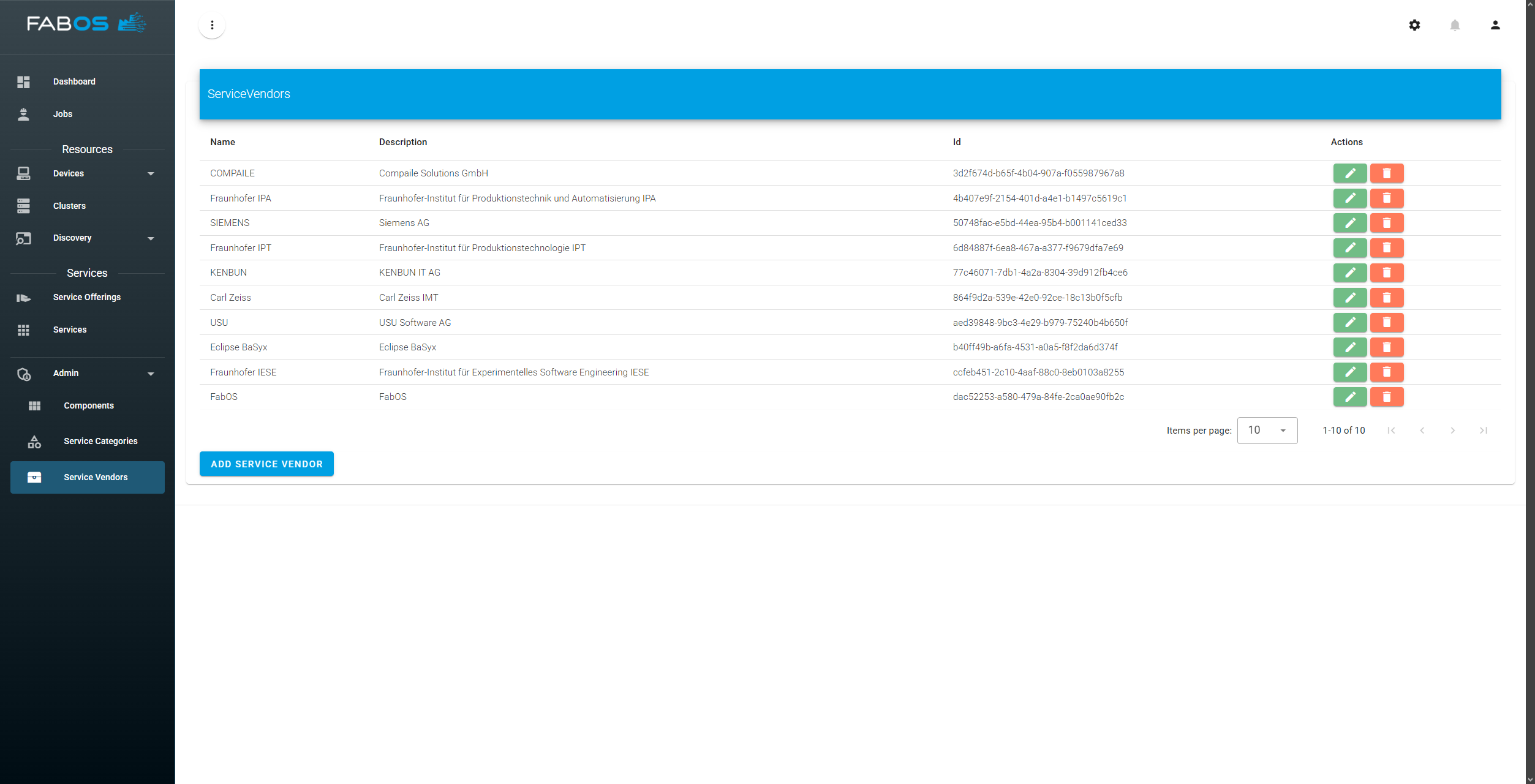
GO TO
Admin > Service Vendors
... and click on Add Service Vendor button in the lower left corner:
Enter a name, description and a logo (optional) for your service vendor and click Create:
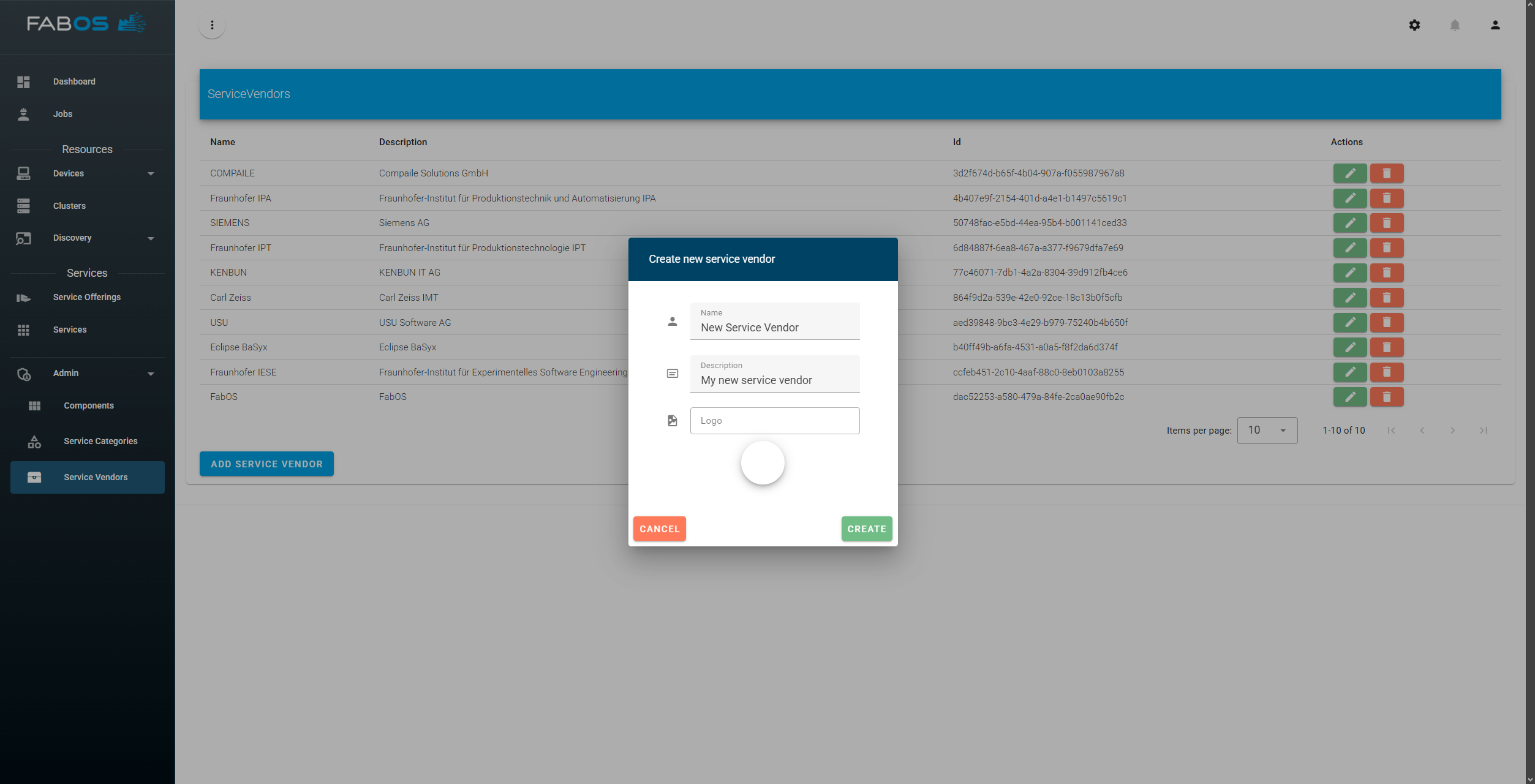
Make sure to add the user fabos as developer to your service vendor to be able to create and manage service offerings for this service vendor. To do so, select your created service vendor:
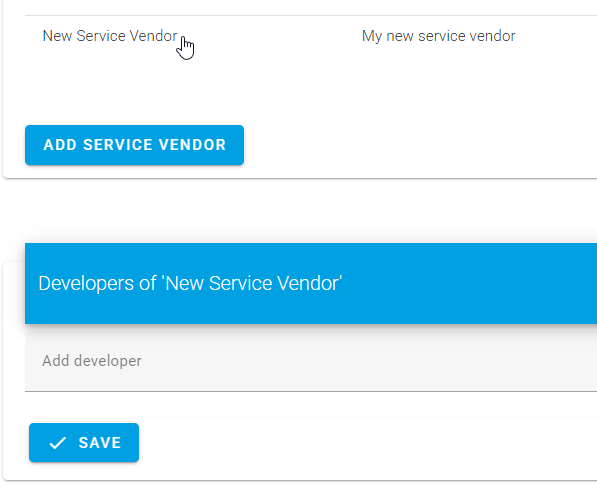
click on Add developer field, select the user fabos from the dropdown
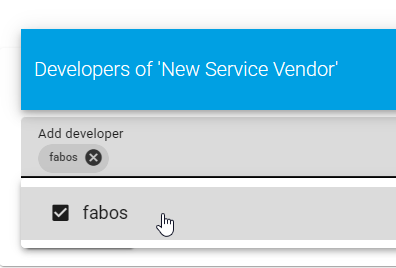
...and click SAVE.
Create Service Offering Category
GO TO
Admin > Service Categories
... and add a new service category by clicking on the Add Service Category button in the lower left corner in case you do not have any service category yet or want to add another one:
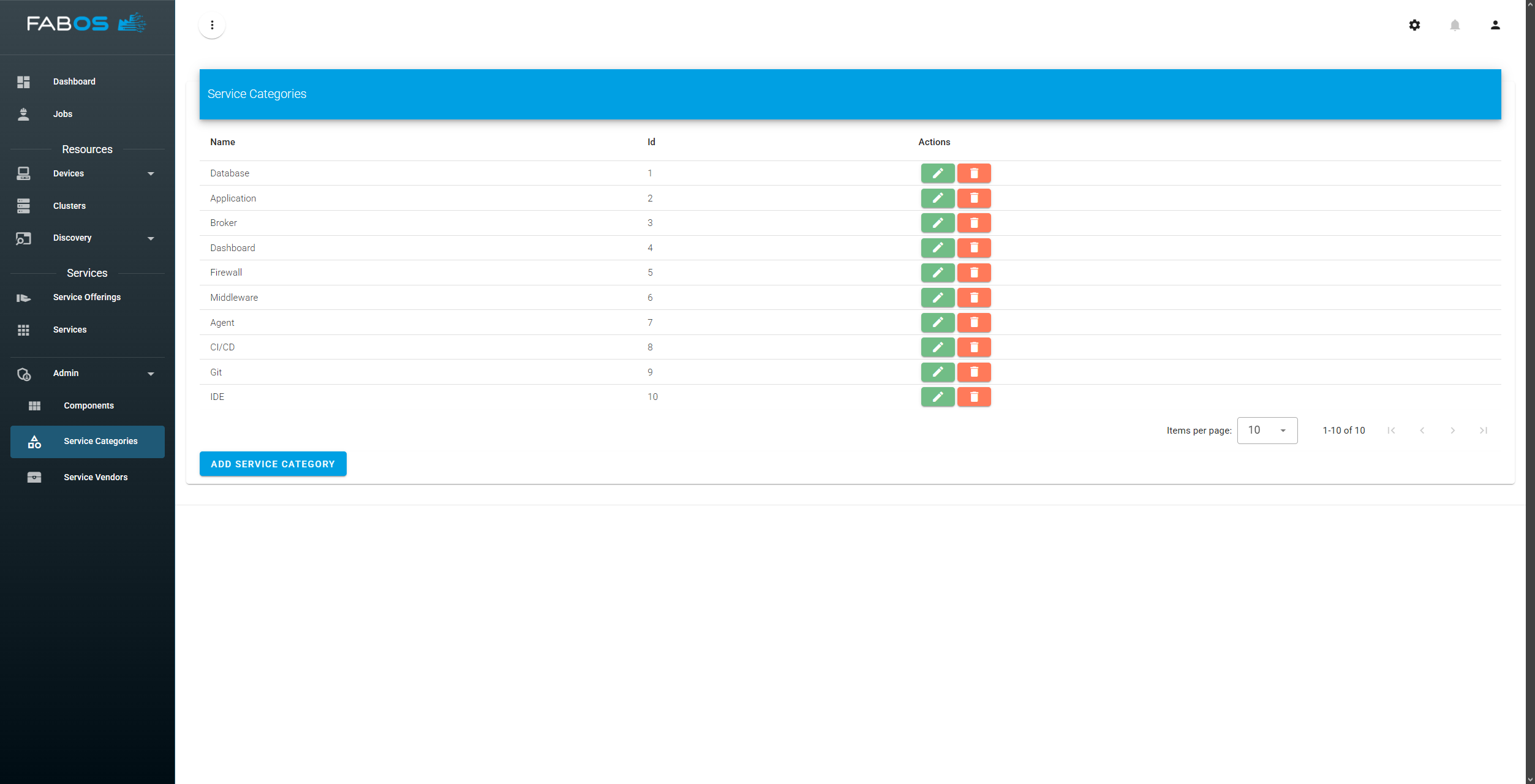
Enter a name for your service category and click Create: