Step 4: Create a service offering
As a developer of a service vendor you should now see the section Service Vendor:
INFO
If Service Vendor section is not visible refresh the whole page or log out and in again.
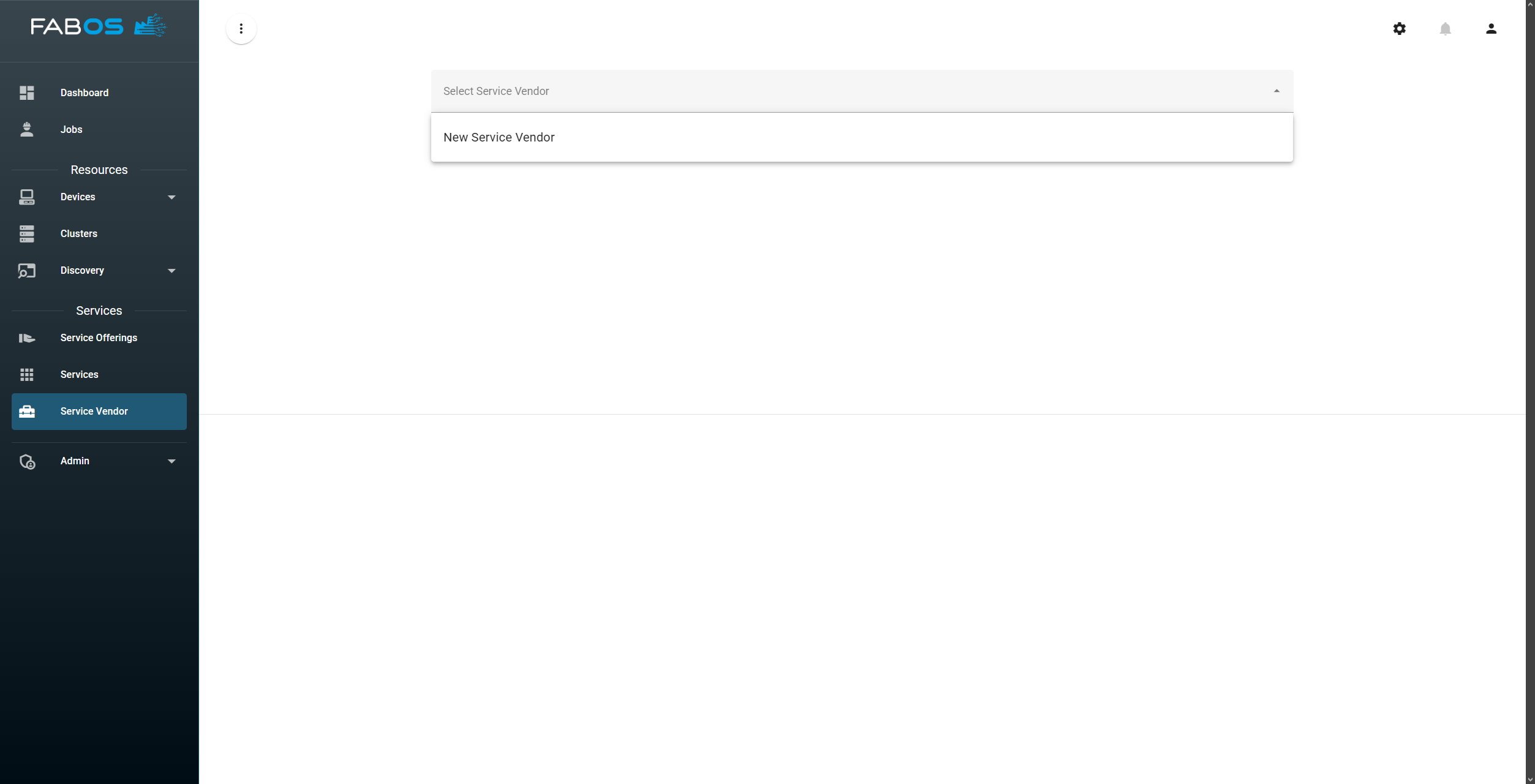
Creating a new service offering is a two step process. First, you need to create a service offering and then you need to create a version of the service offering. A service offering can have multiple versions, but for this example we will create only one version.
Create a service offering
Click on the ADD SERVICE OFFERING button: 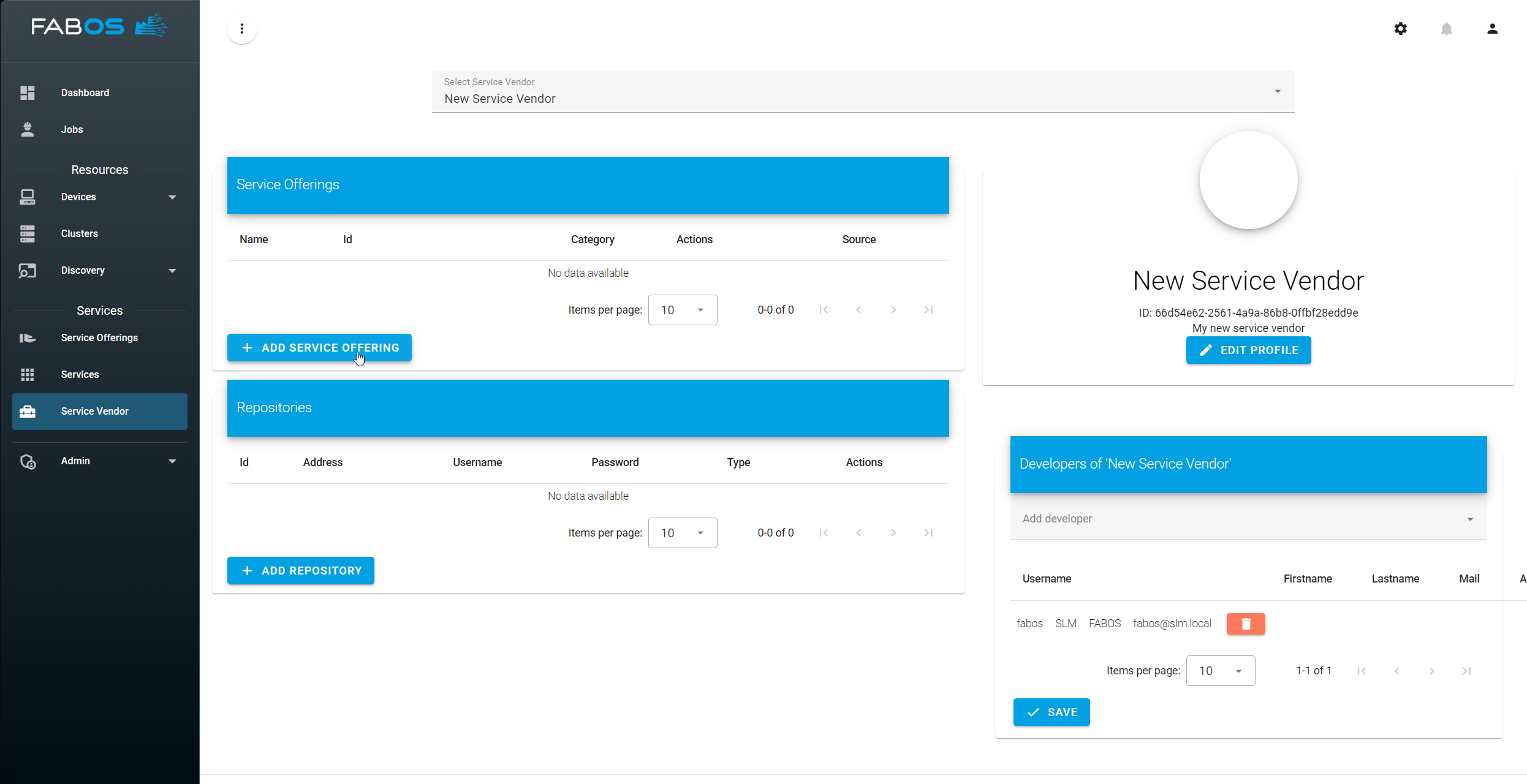
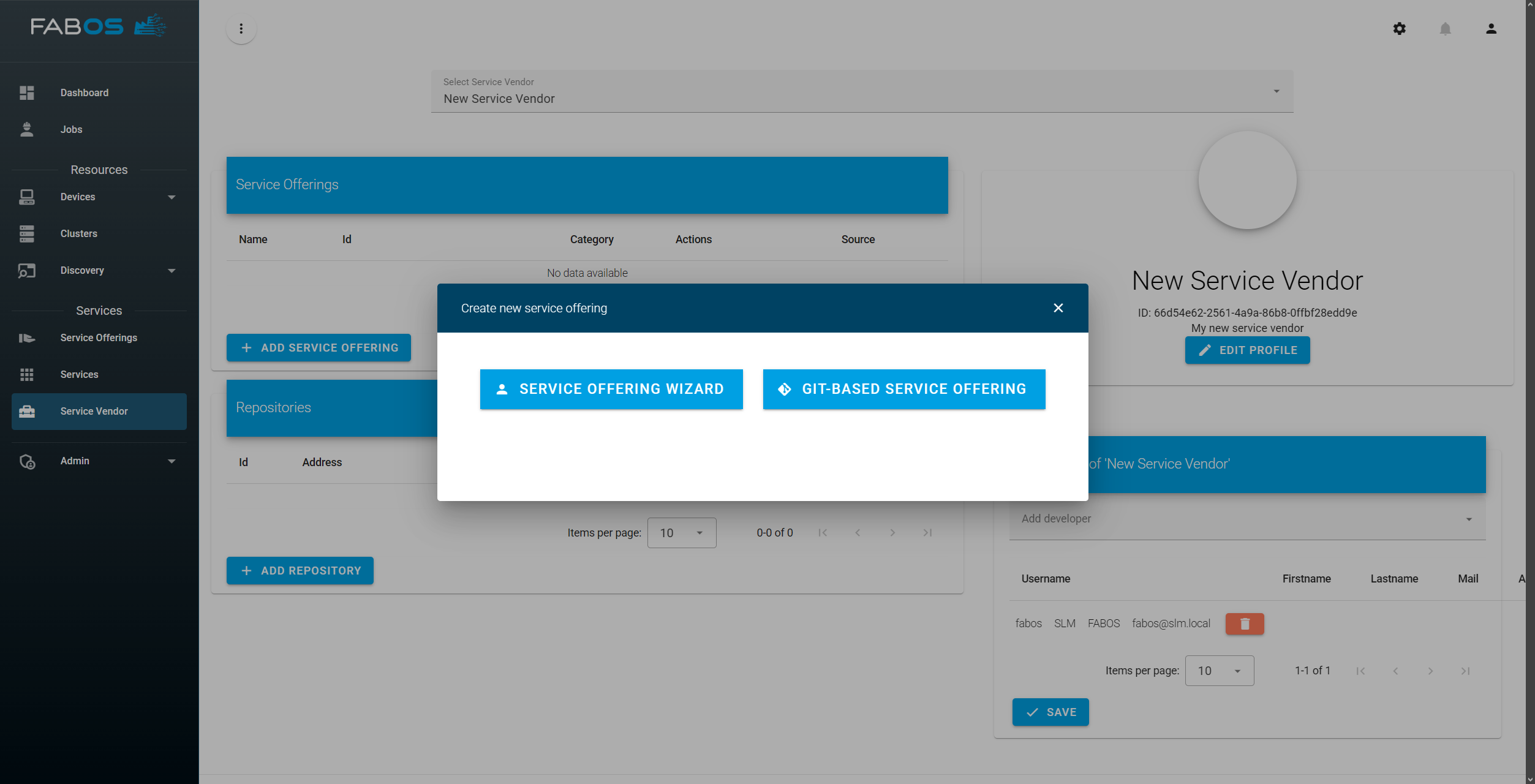
Click on Service Offering Wizard to start creating a service offering:
Use the following data for your first offering and hit `Create:
| Field | Value |
|---|---|
| Service Name | Node-RED |
| Service Category | Select your created service category (see Step 3) |
| Short Description | Node-RED provides a browser-based flow editor that makes it easy to wire together flows using the wide range of nodes in the palette. |
| Description | Node-RED is a programming tool for wiring together hardware devices, APIs and online services in new and interesting ways. It provides a browser-based editor that makes it easy to wire together flows using the wide range of nodes in the palette that can be deployed to its runtime in a single-click. |
| Click here to select image |  |
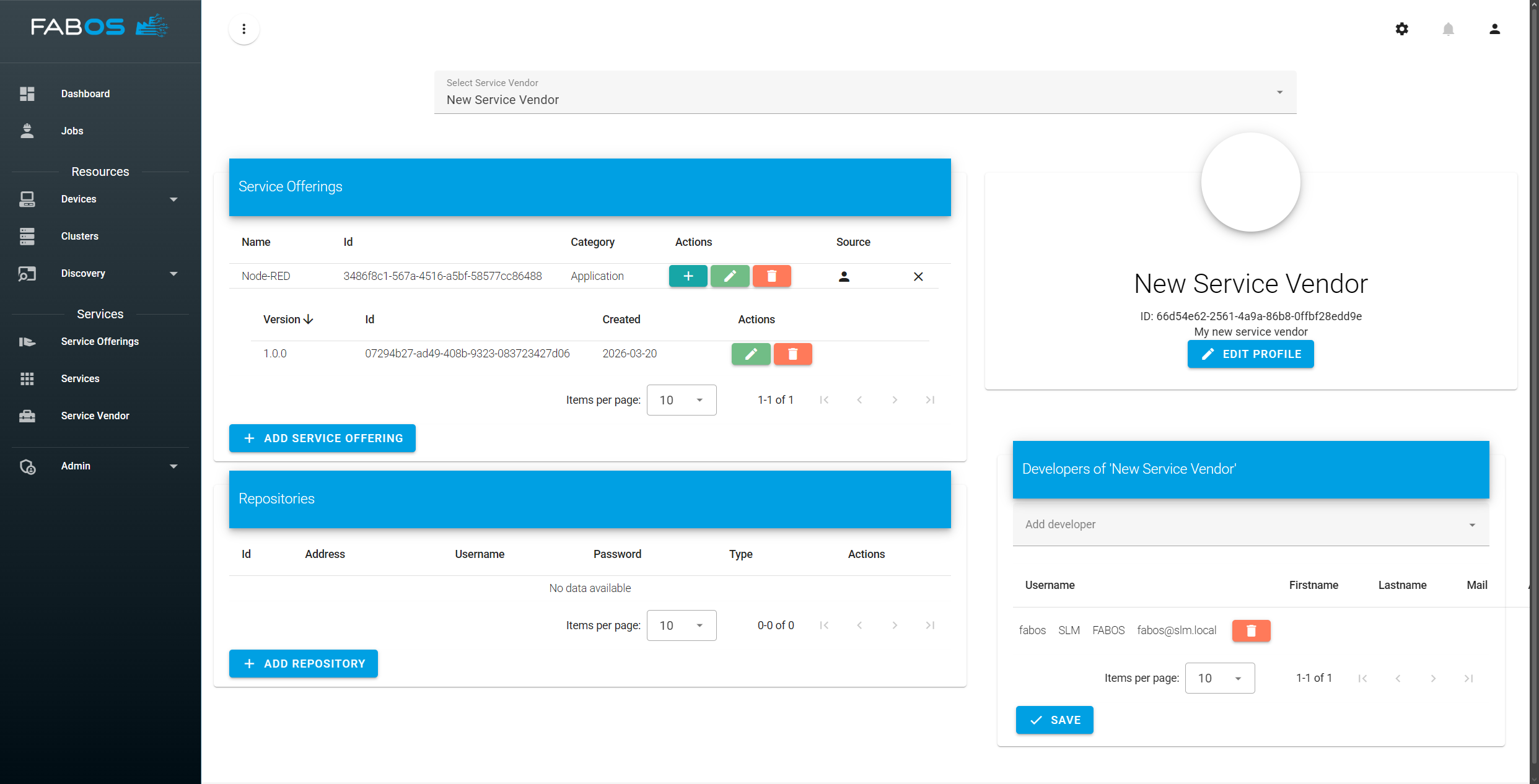
Your first offering should now be created and you should see the following screen: 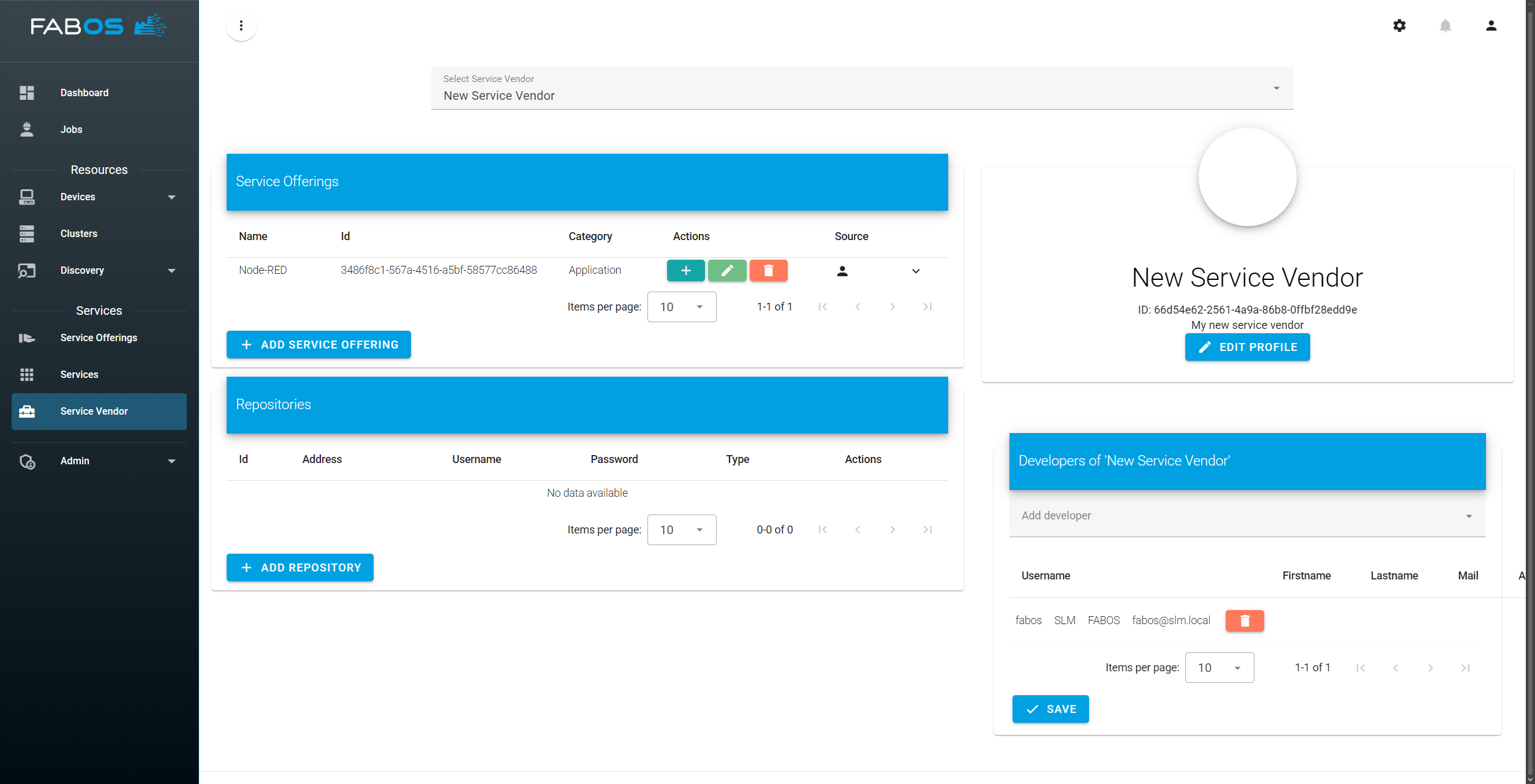
Create a version of a service offering
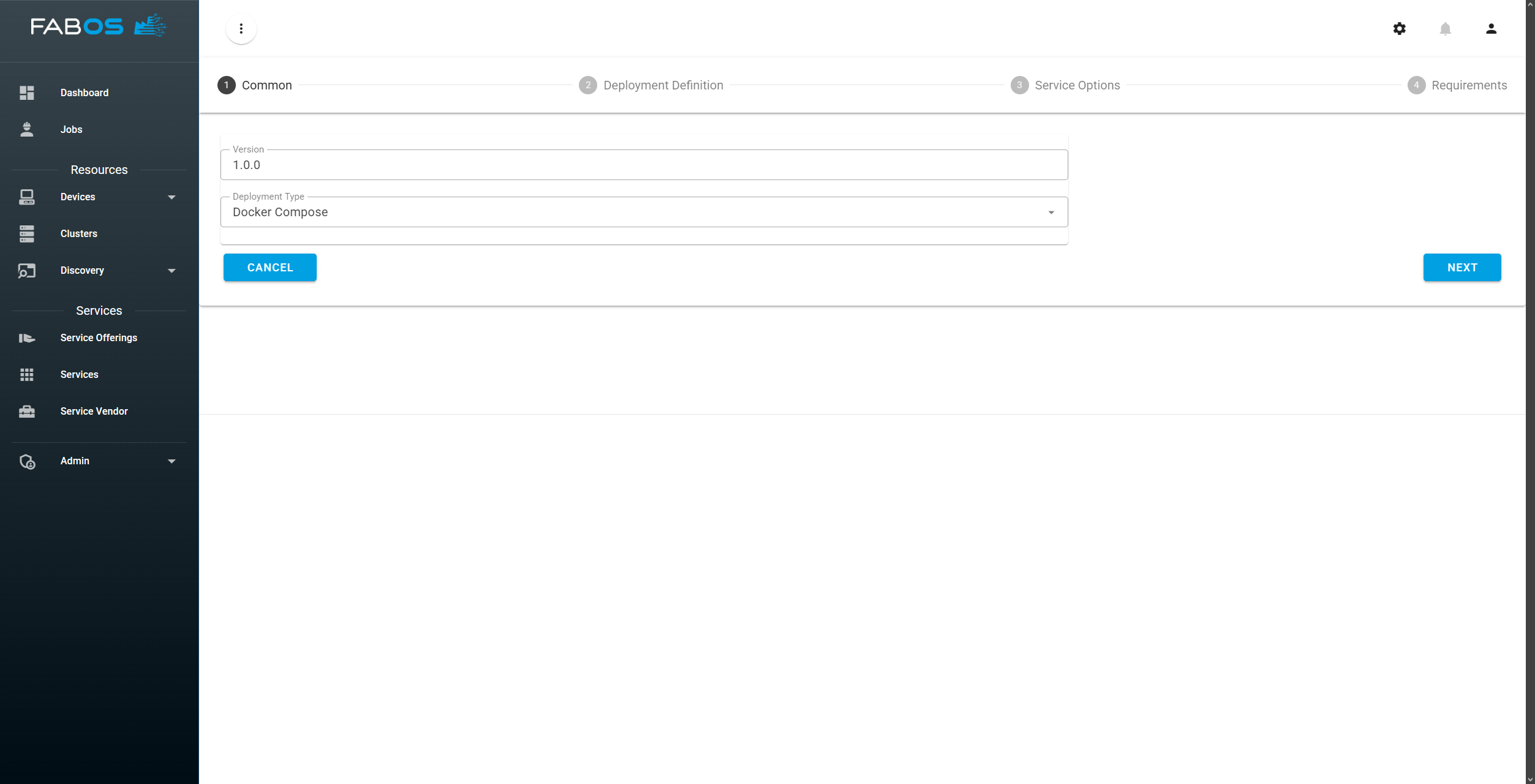
By clicking the + button in the actions column of your new offering the wizard for creating a new version of your offering will appear. For your first version keep the default version number 1.0.0. and select Docker Compose as deployment type. Then confirm by clicking the NEXT button:
In the next steps you need to enter some Docker Compose related information. Download the three files docker-compose.yml, .env and env.list or create it with the following content:
version: "3"

services:
  node-red:
    image: nodered/node-red:2.2.2
    env_file:
      - env.list
    ports:
- "${NODERED_PORT}:1880"NODERED_PORT=1880TZ=Europe/BerlinUpload the files in the corresponding fields (field for env and env.list will appear afer uploading the docker-compose.yml file):
docker-compose.ymlinCompose File
envin.env File (Optional). Enable Service Option forNODERED_PORT: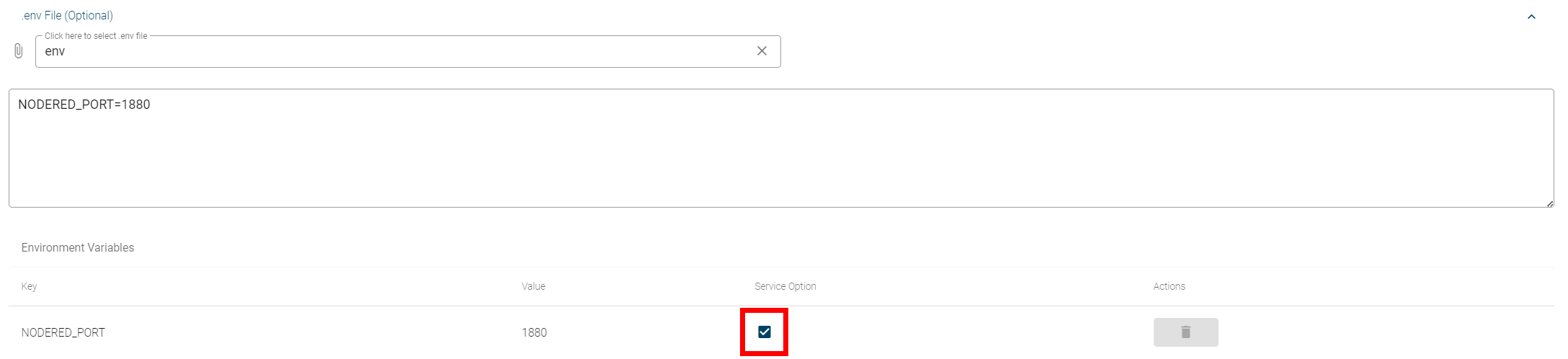
env.listinEnvironment Variable Files -> env.list. Enable Service Option forTZ: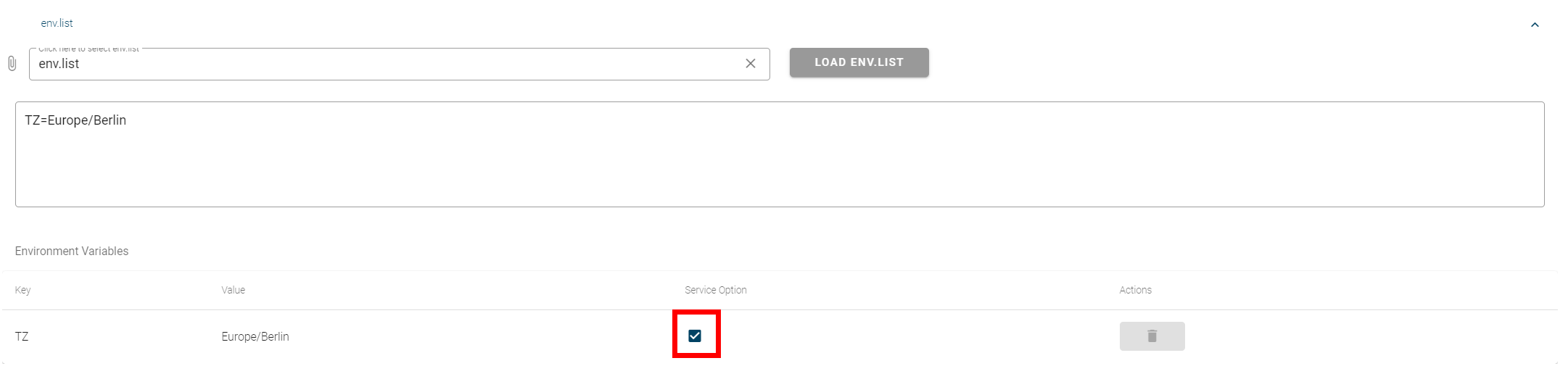
In case your docker compose workload requires credentials for pulling the images you can select those credentials via the Docker Registries Credentials field. For this example we will not use any credentials, so just leave the field empty.
Click on the NEXT button. All environment variables with Service Option enabled will be converted to a service option of the service offering. Service options are values that can be edited by the users during the order process. For this example enter the following information for the two service options: 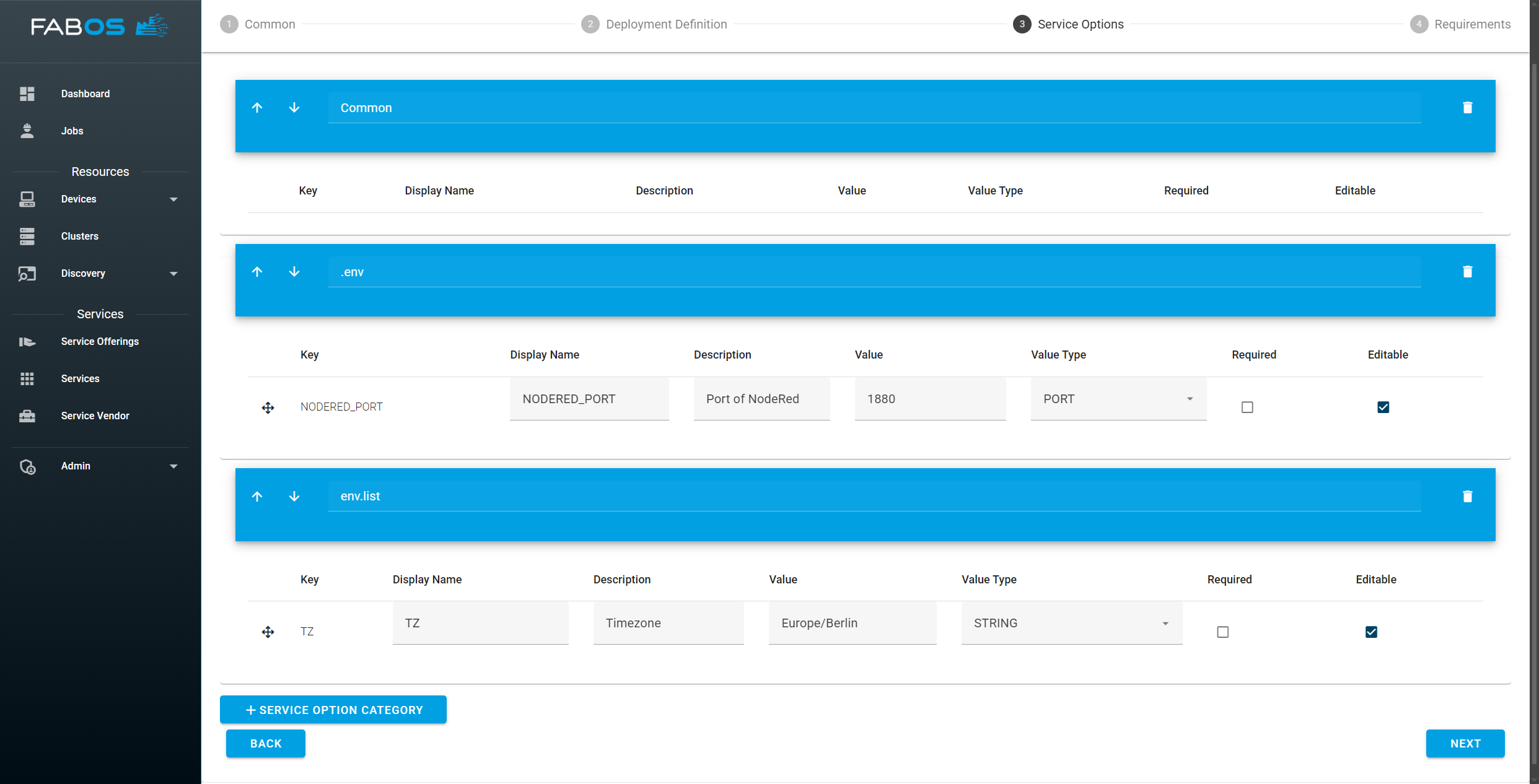
The Service Options are grouped by Service Option Categories. A default category Common is already created for you and .env and env.list variables do also a separate category. You can also create your own categories and arrange the options as you wish. For this example we will use the default categories and delete Common as it is empty.
Click on the NEXT button to go to the requirements step. Here you can define requirements for your service offering. Requirements are used to find the right host for your service offering in case it requires specific hardware or software capabilities. For this example we will not define any requirements, so just click CREATE to create your service offering.